
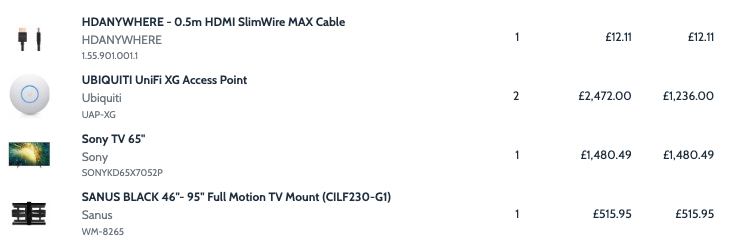
The item list section shows the quoted products from your quote editor. You can customise it to show or hide specific details as needed.
Item List Description: #
- Short / Long Description
- SKU
- Manufacturer
- Manufacturer / Model
- Manufacturer / SKU
- Model
- Unit Price
- Notes
- Document Short / Long
How to Add ‘Short/ Long Description’ to the Item List in a Proposal #
- Select a Quote
Choose the quote you want to edit. - Go to Proposal View
Open the proposal view for the selected quote. - Go to ‘Edit‘
Click on the ‘Edit’ button to make changes to the proposal. - Navigate to the Item List
In the proposal, locate the ‘Item List’ section. - Add ‘Short / Long Description’
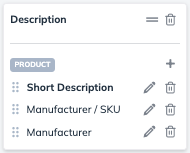
Under the ‘Description’ column, click on the + icon and add ‘Short / Long Description’. - Click ‘Finish Editing’:
Select ‘Finish Editing’ to save your changes.
Adding Notes to a Product: #
- Select a Quote:
Choose the quote you want to edit. - Open the Quote Editor:
Access the quote editor to make changes. - Select a Product and Click the Edit Pencil:
Pick the product you want to add notes to and click the edit icon. - Enter Your Notes in the ‘Notes’ Text Field:
Input your notes in the designated field. - Click ‘Save’:
Save your changes to update the product.
How to Include Notes in Your Item List in a Proposal: #
- Select a Quote:
Choose the quote you want to edit. - Open the Quote Editor:
Access the quote editor to make changes. - Select a Product and Click the Edit Pencil:
Pick the product you want to add notes to and click the edit icon. - Enter Your Notes in the ‘Notes’ Text Field:
Input your notes in the designated field. - Click ‘Finish Editing’:
Select ‘Finish Editing’ to save your changes.
Unit Price #
You can display the ‘Unit Price’ either by the product description or as a separate column.
How to Add Unit Price to the Item List in a Proposal #
Product Description:
- Select a Quote
Choose the quote you want to edit. - Go to Proposal View
Open the proposal view for the selected quote. - Go to ‘Edit‘
Click on the ‘Edit’ button to make changes to the proposal. - Navigate to the Item List
In the proposal, locate the ‘Item List’ section. - Add ‘Unit Price‘
Under the ‘Description’ column, click on the + icon and add ‘Unit Price’. - Click ‘Finish Editing’:
Select ‘Finish Editing’ to save your changes.
How to Add Unit Price to the Item List in a Proposal #
Seperate Column:
- Select a Quote
Choose the quote you want to edit. - Go to Proposal View
Open the proposal view for the selected quote. - Go to ‘Edit‘
Click on the ‘Edit’ button to make changes to the proposal. - Navigate to the Item List
In the proposal, locate the ‘Item List’ section. - Add ‘Unit Price‘
This will appear as a separate column, and you can move it to your preferred position by clicking on the “=” - Click ‘Finish Editing’:
Select ‘Finish Editing’ to save your changes.
Note: The ‘Unit Price’ column appears on both the web link and the PDF.
How To Add SKU to the Item List in a Proposal #
- Select a Quote
Choose the quote you want to edit. - Go to Proposal View
Open the proposal view for the selected quote. - Go to ‘Edit‘
Click on the ‘Edit’ button to make changes to the proposal. - Navigate to the Item List
In the proposal, locate the ‘Item List’ section. - Add ‘SKU’
Under the ‘Description’ column, click on the + icon and add ‘SKU’. - Click ‘Finish Editing’:
Select ‘Finish Editing’ to save your changes.
How To Add Manufacture to the Item List in a Proposal #
- Select a Quote
Choose the quote you want to edit. - Go to Proposal View
Open the proposal view for the selected quote. - Go to ‘Edit‘
Click on the ‘Edit’ button to make changes to the proposal. - Navigate to the Item List
In the proposal, locate the ‘Item List’ section. - Add ‘Manufacture‘
Under the ‘Description’ column, click on the + icon and add ‘Manufacture’. - Click ‘Finish Editing’:
Select ‘Finish Editing’ to save your changes.
How To Add Manufacture/ Model Details to the Item List in a Proposal #
- Select a Quote
Choose the quote you want to edit. - Go to Proposal View
Open the proposal view for the selected quote. - Go to ‘Edit‘
Click on the ‘Edit’ button to make changes to the proposal. - Navigate to the Item List
In the proposal, locate the ‘Item List’ section. - Add ‘Manufacture/ Model‘
Under the ‘Description’ column, click on the + icon and add ‘Manufacture/ Model’. - Click ‘Finish Editing’:
Select ‘Finish Editing’ to save your changes.
How To Add Manufacture/ SKU Details to the Item List in a Proposal #
- Select a Quote
Choose the quote you want to edit. - Go to Proposal View
Open the proposal view for the selected quote. - Go to ‘Edit‘
Click on the ‘Edit’ button to make changes to the proposal. - Navigate to the Item List
In the proposal, locate the ‘Item List’ section. - Add ‘Manufacture/ SKU’
Under the ‘Description’ column, click on the + icon and add ‘Manufacture/ SKU’. - Click ‘Finish Editing’:
Select ‘Finish Editing’ to save your changes.
How To Add Model Details to the Item List in a Proposal #
- Select a Quote
Choose the quote you want to edit. - Go to Proposal View
Open the proposal view for the selected quote. - Go to ‘Edit‘
Click on the ‘Edit’ button to make changes to the proposal. - Navigate to the Item List
In the proposal, locate the ‘Item List’ section. - Add ‘Manufacture/ SKU’
Under the ‘Description’ column, click on the + icon and add ‘Manufacture/ SKU’. - Click ‘Finish Editing’:
Select ‘Finish Editing’ to save your changes.
How To Add Documents Short/Long to the Item List in a Proposal #
- Select a Quote
Choose the quote you want to edit. - Go to Proposal View
Open the proposal view for the selected quote. - Go to ‘Edit‘
Click on the ‘Edit’ button to make changes to the proposal. - Navigate to the Item List
In the proposal, locate the ‘Item List’ section. - Add ‘Documents Short/Long’
Under the ‘Description’ column, click on the + icon and add ‘Documents Short/Long’. - Click ‘Finish Editing’:
Select ‘Finish Editing’ to save your changes.
You can also move the item list description to your preferred location, delete it, edit the font style, or move the description box column.
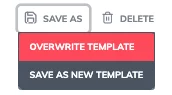
Once you’re satisfied, save your changes to overwrite the template. These updates will automatically apply every time you use the template for future quotes.