
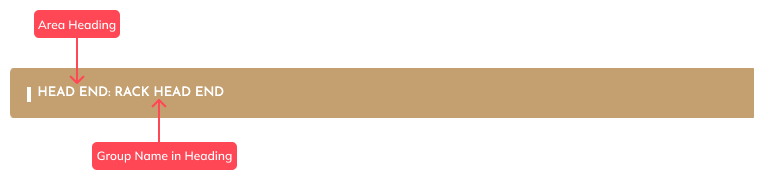
The loop displays the structure and layout of your systems, subsystems, area groups and areas from the quote editor, which is shown on the proposal.
Proposal Loops: #
- Area Group Loop
- Area Loop
- System Loop
- Subsystem Loop
How To Add Area Group Loop #
1. Select a Quote
2. Go to Proposal View
3. Go to ‘Edit‘
4. Add a Section ‘Area Group Loop’
5. Move the Section to Your Preferred Location:
- Highlight the section and drag it up or down. A red line will appear, showing where you can drop it.
6. Add Additional Sections
- Click on the + icon to add other sections, such as the items list, options, and total, as needed.
7. Click ‘Finish Editing’: Select ‘Finish Editing’ to save your changes
How To Add Area Loop #
1. Select a Quote
2. Go to Proposal View
3. Go to ‘Edit‘
4. Add a Section ‘Area Loop’
5. Move the Section to Your Preferred Location:
- Highlight the section and drag it up or down. A red line will appear, showing where you can drop it.
6. Add Additional Sections
- Click on the + icon to add other sections, such as the items list, options, and total, as needed
7. Click ‘Finish Editing’
- Select ‘Finish Editing’ to save your changes.
How To Add System Loop #
1. Select a Quote
2. Go to Proposal View
3. Go to ‘Edit‘
4. Add a Section ‘System Loop’
5. Move the Section to Your Preferred Location:
- Highlight the section and drag it up or down. A red line will appear, showing where you can drop it.
6. Add Additional Sections
- Click on the + icon to add other sections, such as the items list, options, and total, as needed.
7.Click ‘Finish Editing’:
- Select ‘Finish Editing’ to save your changes.
How To Add Subsystem Loop #
1. Select a Quote
2. Go to Proposal View
3. Go to ‘Edit‘
4. Add a Section ‘Subsystem Loop’
5. Move the Section to Your Preferred Location:
- Highlight the section and drag it up or down. A red line will appear, showing where you can drop it.
6. Add Additional Sections
- Click on the + icon to add other sections, such as the items list, options, and total, as needed.
7. Click ‘Finish Editing’:
- Select ‘Finish Editing’ to save your changes.
Note: When you add a subsystem loop, all your subsystems will be displayed. If some subsystems have no items to them, the loop will still appear but without any details. To fix this, go back to the Quote Editor and remove any subsystems that don’t have any items. This applies to all types of loops.
Loop Customisation. #
Customising loops allows you to modify the information displayed within your proposal.
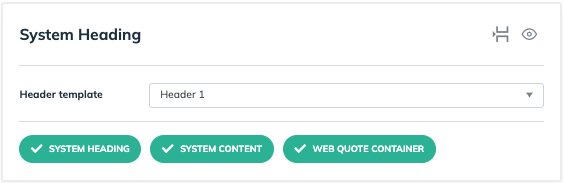
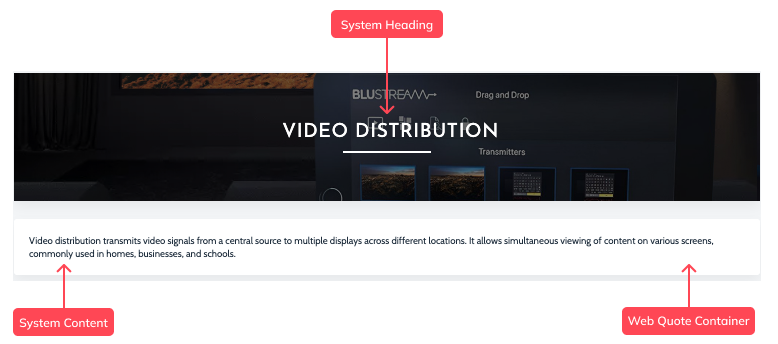
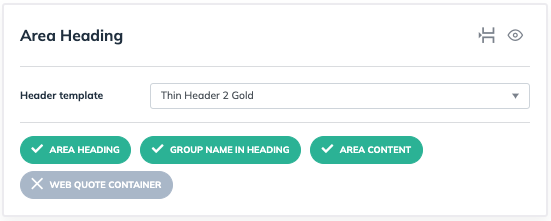
You can turn descriptions and content on or off, and this applies to all loops.
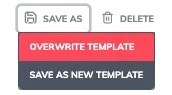
Once you’re satisfied with the location and selected features, save your changes to overwrite the template. These updates will automatically apply every time you use the template for future quotes