

Add images on Quote editor for:
- Systems Header
- Subsystems Header
- Area Groups Header
- Areas Header
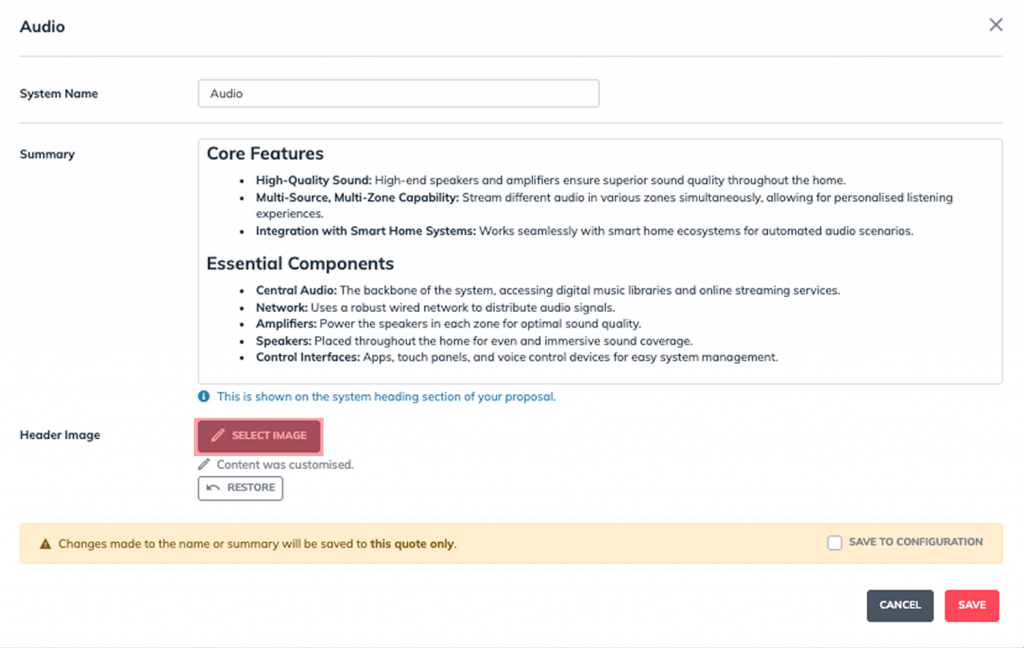
Adding an image to a Systems header: #
1. Select a Quote
- Choose the quote you want to work on.
2. Go to Quote Editor
- Open the Quote Editor to make changes.
3. Select the System
- Choose the system to which you’d like to add the image.
4. Find the System Pencil Icon
- Locate the pencil icon to edit the system.
5. Navigate to the “Header Image” Section
- Go to the section labeled “Header Image.”
6. Click on “Select Image”
- You will see an option labeled “Select Image.” Click on this button.
7. Choose from the following methods:
- Click on “Select Image” to add images to your header.
- URL Link
- Browser
- Asset Library
8. Click “Save”
- After choosing your image, click the “Save” button to apply the changes.
Adding an image to a Subsystems header: #
1. Select a Quote
- Choose the quote you want to work on.
2. Go to Quote Editor
- Open the Quote Editor to make changes.
3. Select the Subsystem
- Choose the ‘Subsystem’ to which you’d like to add the image.
4. Find the Subsystem Pencil Icon
- Locate the pencil icon to edit the subsystem.
5. Navigate to the “Header Image” Section
- Go to the section labeled “Header Image.”
6. Click on “Select Image”
- You will see an option labeled “Select Image.” Click on this button.
7. Choose from the following methods:
- Click on “Select Image” to add images to your header.
- URL Link
- Browser
- Asset Library
8. Click “Save”
- After choosing your image, click the “Save” button to apply the changes.
Adding an image to an Area header: #
1. Select a Quote
- Choose the quote you want to work on.
2. Go to Quote Editor
- Open the Quote Editor to make changes.
3. Select the Area Header
- Choose the Area Group to which you’d like to add the image.
4. Find the Area Pencil Icon
- Locate the pencil icon to edit the system.
5. Navigate to the “Header Image” Section
- Go to the section labeled “Header Image.”
6. Click on “Select Image”
- You will see an option labeled “Select Image.” Click on this button.
7. Choose from the following methods:
- Click on “Select Image” to add images to your header.
- URL Link
- Browser
- Asset Library
8. Click “Save”
- After choosing your image, click the “Save” button to apply the changes.
Adding an image to a Area Group header: #
1. Select a Quote
- Choose the quote you want to work on.
2. Go to Quote Editor
- Open the Quote Editor to make changes.
3. Select the Area Group
- Choose the system to which you’d like to add the image.
4. Find the Area Group Pencil Icon
- Locate the pencil icon to edit the system.
5. Navigate to the “Header Image” Section
- Go to the section labeled “Header Image.”
6. Click on “Select Image”
- You will see an option labeled “Select Image.” Click on this button.
7. Choose from the following methods:
- Click on “Select Image” to add images to your header.
- URL Link
- Browser
- Asset Library
8. Click “Save”
- After choosing your image, click the “Save” button to apply the changes.
If you want to know how to add a header style to your proposal. Go to:
https://knowledgebase.wequote.cloud/doc/how-to-add-a-header-style-to-your-proposal/: How to add images to a header