
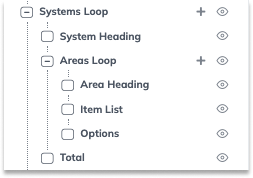
The loop displays the structure and layout of your systems, subsystems, area groups and areas from the quote editor, which is shown on the proposal.
1. Select Quote
- Choose the quote you want to work on.
2. Proposal View
- Navigate to the ‘Proposal View’ to edit your proposal.
3. Edit Mode
- Click on ‘Edit’ to start modifying your proposal.
4. Add Section
- Add your preferred section from the available options.
5. Move Section
- Move the new section to your preferred location, as it will appear at the bottom.
6. Organise Section
- Highlight the section and move it to the desired position.
7. Add Loop
- Click on the plus icon to add another loop to your proposal.
8. Choose Loop
- Select your preferred loop from the options.
9. Extra Features
- Click the plus icon on the second loop to add features like item list, options, or total.
10. Click ‘Finish Editing’
- Save your changes to update the product.
Adding multiple loops #
Changing an existing loop #
Once you’re satisfied, save your changes to overwrite the template. These updates will automatically apply every time you use the template for future quotes.