
Payment stages break down a client’s payment into parts based on phases or time frames. You can customise these stages and set your own payment formula in the configuration settings.
Configure Payment Formulas #
- Go to Configure.
- Navigate to Payment Formulas.
- Select Add New Formula.
- Fill out the details of your payment stages.
- For examples, click the question mark icon on the formula line.
- Select Save.
Edit Proposal and Add Payment Stages #
- Go to the Proposal Editor.
- Select Edit.
- On the left-hand corner, select Add Section.
- From the list, select Payment Stages.
- This new section will automatically appear at the bottom of your proposal.
- Click on the section to highlight it, then hold and drag the section up or down to place it in your preferred location.
- Select Add Payment Stages.
- Choose your pre-built payment formulas.
- Select Finish Editing.
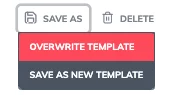
Once you’re satisfied, save your changes to overwrite the template. These updates will automatically apply every time you use the template for future quotes.