

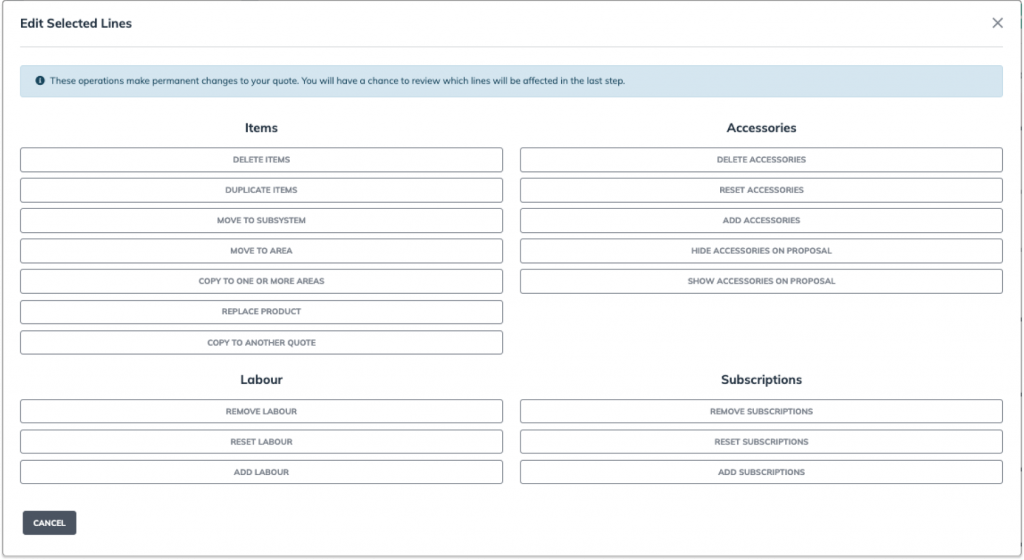
The bulk edit function allows you to edit one or multiple products at the same time, making it easier to reallocate, delete, or replace them. This streamlines the process, saving time and making it faster to create or update a quote efficiently.
Items Bulk Edit Functions #
- Delete Items
- Duplicate Items
- Move To Subsystem
- Move To Area
- Copy To One Or More Areas
- Replace Product
- Copy to Another Quote
Deleting Items #
1. Go to Quote Editor
2. Click on the ‘Bulk Edit‘ Button.
3. Select Products to Delete
4. Click ‘Edit Selected‘
5. Select ‘Delete Items‘
6. Click ‘Submit’ to Apply Changes
7. When you’re finished, click the green ‘Done’ button to save your changes.
Duplicating items #
1. Go to Quote Editor
2. Click on the ‘Bulk Edit‘ Button.
3. Select Products to Duplicate
4. Click ‘Edit Selected‘
5. Select ‘Duplicate items‘
6. Click ‘Submit’ to Apply Changes
7. When you’re finished, click the green ‘Done’ button to save your changes.
Move Products to Subsystem #
1. Select a Quote
2. Go to Quote Editor
3. Click on the ‘Bulk Edit’ Button
4. Select Products to Move
5. Click ‘Edit Selected‘
6. Select ‘Move to Subsystem‘
7. Choose a Subsystem
8. Click ‘Next’ to Confirm
9. Click ‘Submit’ to Apply Changes
10. When you’re finished, click the green ‘Done’ button to save your changes.
Move Products To An Area #
1. Select a Quote
2. Go to Quote Editor
3. Click on the ‘Bulk Edit’ Button
4. Select the Products to Move
5. Click ‘Edit Selected’
6. Select ‘Move to an Area’
7. Choose the Destination Area
8. Click ‘Next’ to Confirm
9. Click ‘Submit’ to Apply Changes
10. When you’re finished, click the green ‘Done’ button to save your changes.
Move Products To One Or More Areas #
1. Select a Quote
2. Go to Quote Editor
3. Click on the ‘Bulk Edit’ Button
4. Select the Products to Move
5. Click ‘Edit Selected’
6. Select ‘Copy to One or More Areas’
7. Choose the Destination Areas
8. Click ‘Next’ to Confirm
9. Click ‘Submit’ to Apply Changes
10. When you’re finished, click the green ‘Done’ button to save your changes.
Replace Product #
1. Select a Quote
2. Go to Quote Editor
3. Click on the ‘Bulk Edit’ Button
4. Click ‘Edit Selected‘
5. Select ‘Replace Product‘
6. Click ‘Select Replacement Product’
7. Choose Replacement Product From The Catalogue or Product Inventory.
8. Click ‘Next’ to Confirm
9. Click ‘Submit‘ to apply the changes.
10. When you’re finished, click the green ‘Done’ button to save your changes.
Copy to Another Quote #
1. Select a Quote
2. Go to Quote Editor
3. Click on the ‘Bulk Edit Button‘
4. Click ‘Edit Selected‘
5. Select ‘Copy to another quote‘
6. Click on ‘Select Quote to Copy Items to’.
7. Select a Quote.
8. Click ‘Next’ to Confirm.
9. Click ‘Submit‘ to apply the changes.
10. When you’re finished, click the green ‘Done’ button to save your changes.