

The cover page should always be placed at the beginning of your document. You can select your preferred style of cover page from a drop-down menu, which offers different options to choose from.
How to Add a Cover Page to your Proposal Template #
1. Select a Quote:
- Start by selecting the quote you want to edit.
2. Navigate to Proposal View:
- Go to the ‘Proposal View’ of the selected quote.
3. Go to ‘Edit’
- Click on ‘Edit’ to modify the proposal.
4. Add the Cover Page Section:
- Select the section and add the ‘Cover Page’ section to the proposal list.
5. Choose a Cover Page:
- From the drop-down menu, select the cover page style you prefer.
How to Change the Cover Page Image #
1. Select a Cover Page:
- Once a cover page is chosen, click on ‘Edit Image’ to change the image.
2. Choose Image Source:
Select an image from one of the following options:
- URL Link
- Browser
- Asset Library
3. Select and Save:
- Choose the desired image and click ‘Finish Editing’ to apply the changes.
If the cover page doesn’t appear in your proposal view: #
1. Go to ‘Edit.’
2. Navigate to ‘Settings.’
3. Under ‘Web Quote,‘ tick ‘Show Cover Page.’
4. Select ‘Save.’
5. Click ‘Finish Editing.’
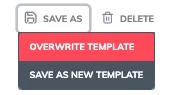
Once you’re satisfied, save your changes to overwrite the template. These updates will automatically apply each time you use the template for future quotes.
Most cover pages can be customised directly in the proposal editor, allowing you to replace images as needed. If you need a specific cover page design or want the ‘Cover Page’ editor enabled, please contact us for assistance.