
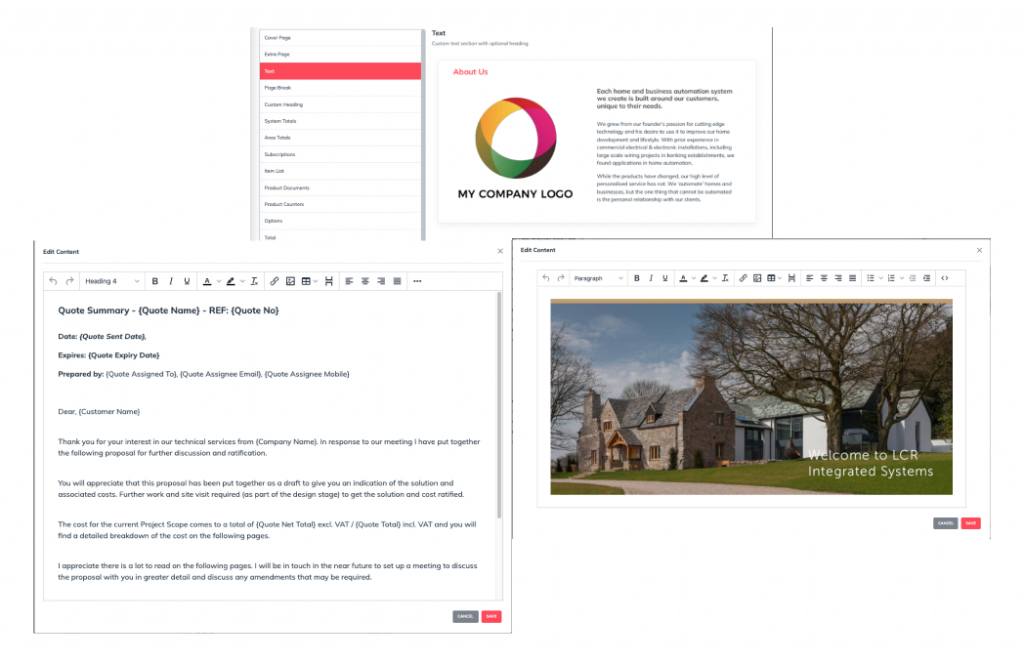
You can use the text box to include various elements like text, images, videos, tags, and even hyperlinks to enrich your content.
What Are Tags or Shortcodes? #
A tag or shortcode acts as a placeholder within templates. It dynamically inserts specific content, such as replacing {ClientName} with the actual client’s name.
How to Add Tags #
1. Go to the Knowledge Base
- Navigate to the knowledge base for information and resources.
2. Search for Tags or Shortcodes
- Use the search function to look for “tags or shortcodes.”
3. Choose Your Preferred Tag
- Select the tag or shortcode that fits your needs.
4. Copy and Paste the Tag
- Copy the desired tag or shortcode and paste it into the text box where you want it to appear.
5. Finish Editing
- After adding the necessary elements and tags, click ‘Finish Editing’ to save and apply the changes.
To Add An Image #
1. Select a Quote #
- Choose the quote where you want to add and adjust the image.
2. Go to Proposal View #
- Open the proposal view for the selected quote.
3. Go to ‘Edit’ #
- Click on the ‘Edit’ button to begin making changes.
4. Click on ‘Add Section’ #
- Add a new section by selecting the ‘Add Section’ option.
5. Add a Text Box #
- Insert a text box into the section to provide space for your image and text content.
6. Position the Text Box #
- Click on the text box and drag it up or down to place it in your preferred location.
7. Add an Image #
- Click inside the text box to activate the editor.
- Select the Image Icon.
8. Insert the Image Source #
- Click on the Source Icon and choose one of the following methods:
- URL Link: Add a direct link to your image.
- Browse from Computer: Upload an image file from your device.
- Asset Library: Select an image stored in your asset library.
9. Adjust Image Settings #
- After uploading, select the image.
- To ensure the image displays at full scale, set the Width to 100%.
10. Save Changes #
- Click Save to confirm the changes.
11. Finish Editing #
- Once satisfied, click ‘Finish Editing’ to apply and save all changes to the proposal.
To Add videos #
Go to: https://wequote.cloud/doc/adding-videos-to-web-quotes/ and follow the steps.
Once you’re satisfied, save your changes to overwrite the template. These updates will automatically apply every time you use the template for future quotes.