

You can send by web link or PDF.
How to Send a Proposal #
1. Select a Quote
- Choose the quote you want to send.
2. Go to ‘Proposal View’
- Navigate to the proposal view for the selected quote,
3. Select ‘Send Proposal’
- Click on the ‘Send Proposal’ button to proceed with sending the proposal.
4. Check for Issues Before Marking as Sent
- Before putting your quote in the ‘Sent’ status, the system will flag any issues that may require your attention or confirmation.
5. Enter Sent and Expiry Date
- Input your desired ‘Sent’ and ‘Expiry’ dates for the proposal.
6. Mark as ‘Sent’
- Once everything is in order, mark the quote as ‘Sent’.
Sending the Proposal #
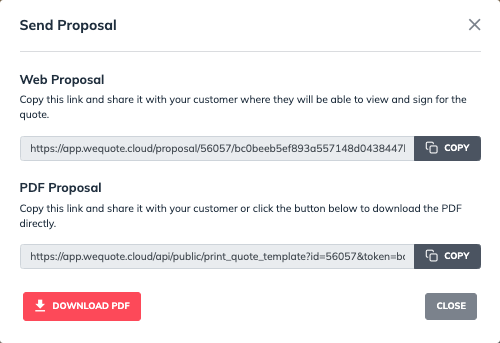
7. Copy the Link
- Copy the generated link for Web proposal or PDF proposal.
8. Send to Client
- Copy link and share it with your customer where they will be able to view and sign for the quote.
Confirm that you have previewed, double-checked your quote and are ready to send to the customer. This quote will be marked as sent and you will need to create a new revision to make any changes to its items or pricing.
Once your proposal is marked as sent, you will be able to send it to the customer.
You will get an email when the customer has first viewed the quote and when they have accept it.